TRex
Stop Retyping. Copy Any Text.
Extract text from images, videos, PDFs, and anything visible on your Mac screen. Powered by local OCR and LLMs.
TRex in Action
Copy any text from your screen with AI-powered OCR
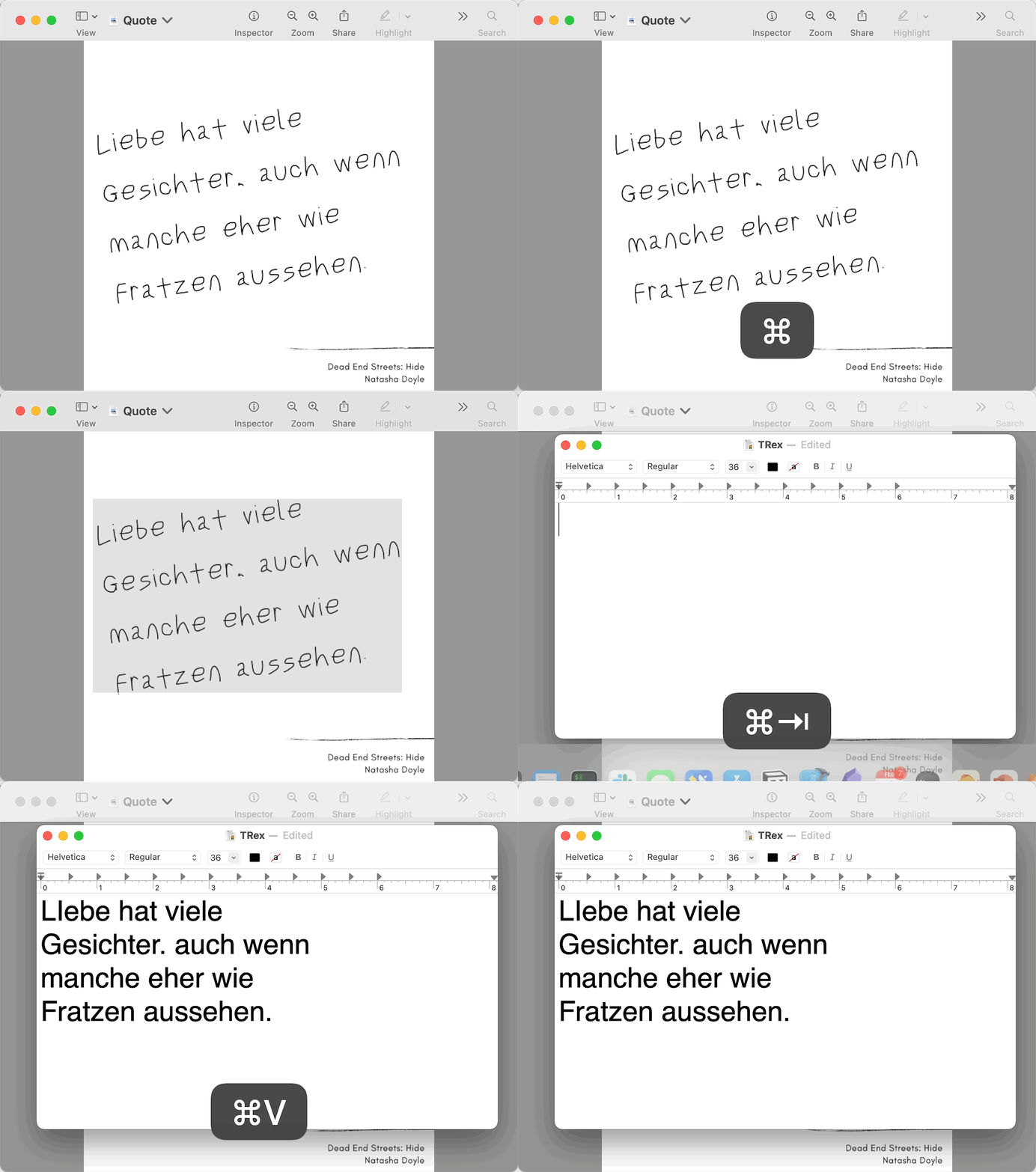
Handwritten Notes
Extract text from handwritten notes and documents
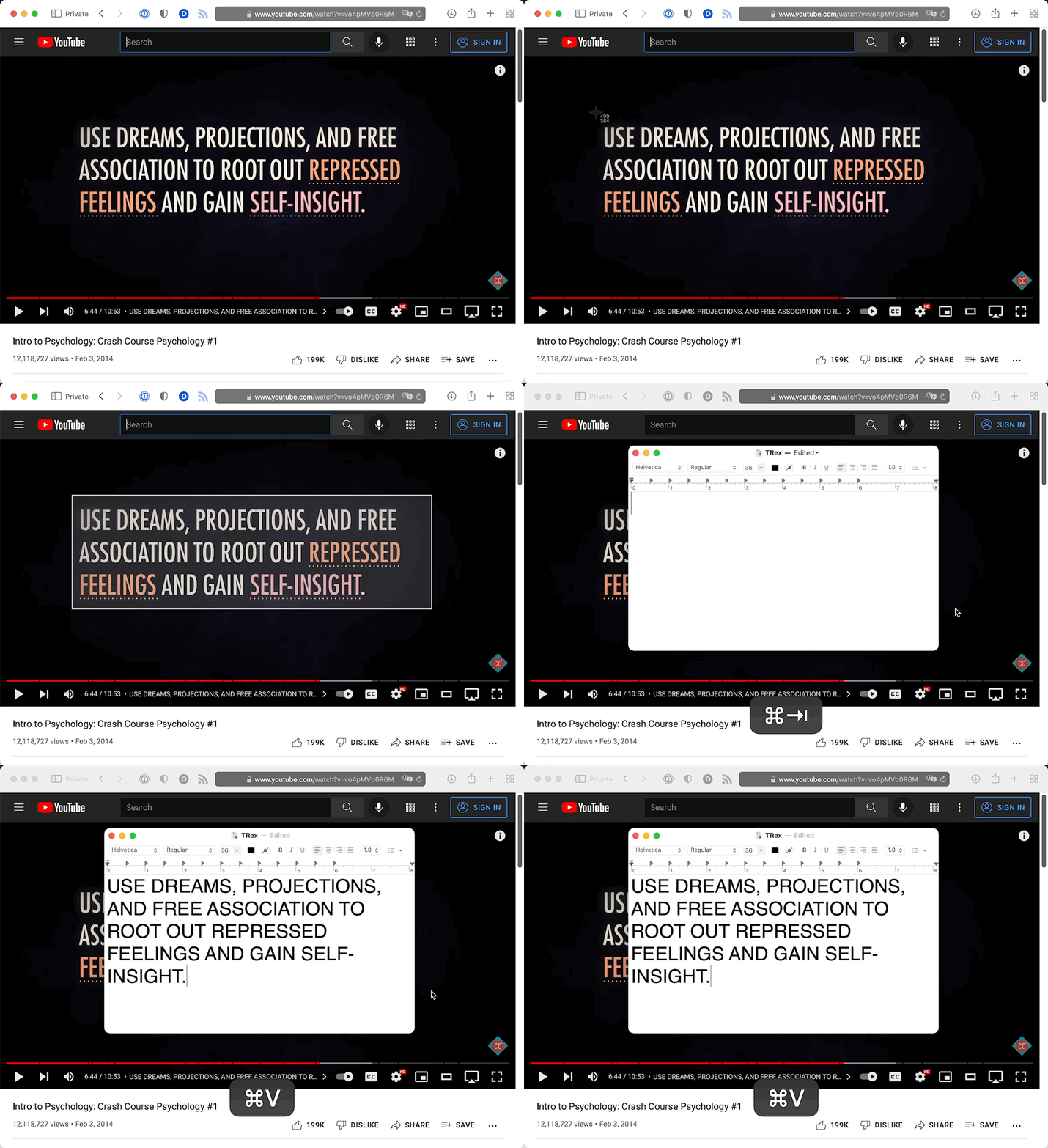
Video Content
Grab text from YouTube videos and streaming content
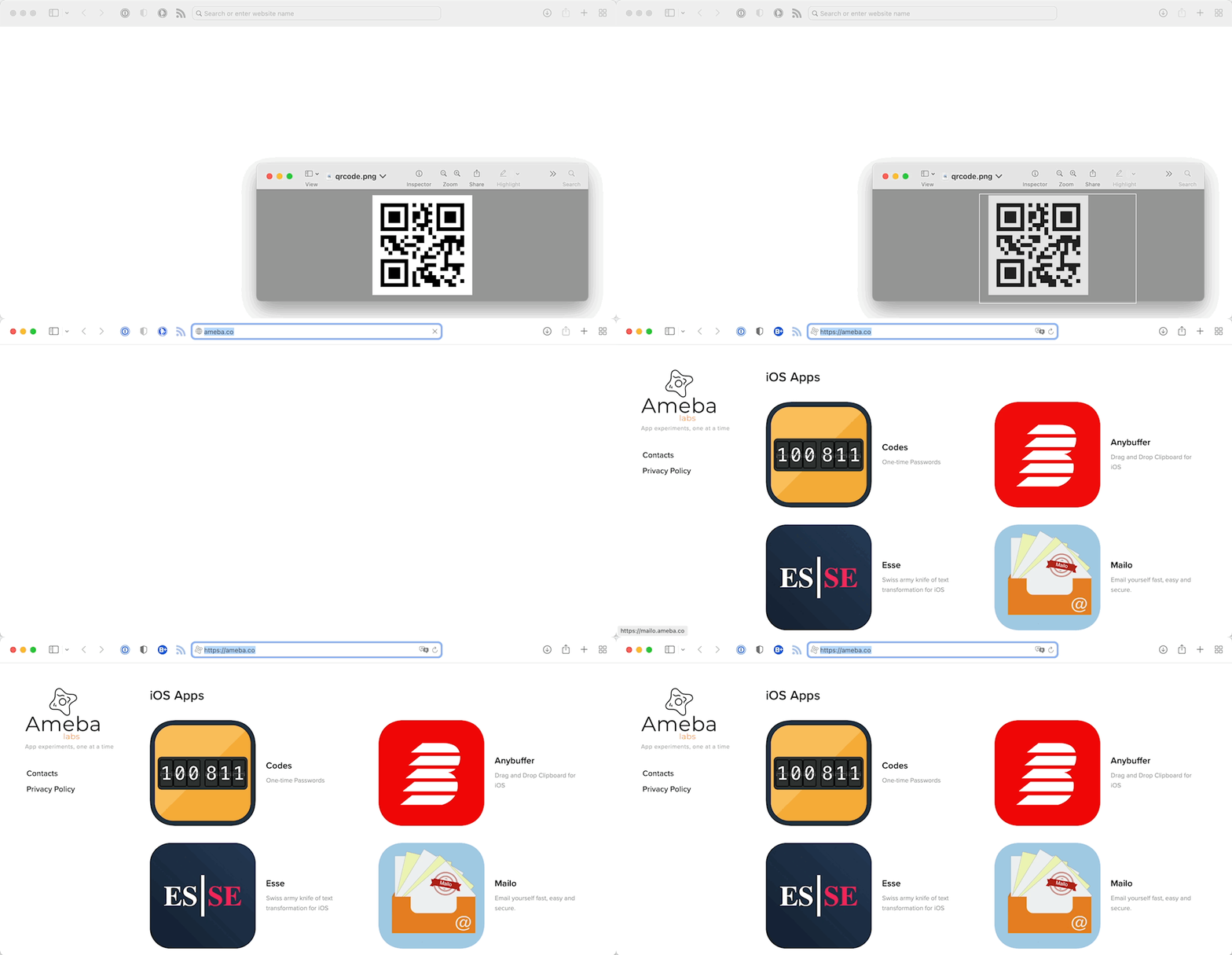
QR Codes
Instantly decode QR codes on your screen
Features
Local OCR, 100% Private
Powered by Apple Vision framework. Runs entirely on your Mac with no internet required
Multi-Region Capture
Select multiple screen areas and combine extracted text in one go
Table Detection
Extract tables and export as Markdown, CSV, TSV, or JSON
Capture History
Browse, search, and re-copy past captures with thumbnail previews
Watch Mode
Continuously monitor a screen region and capture text changes automatically
100+ Languages
Recognize text in over 100 languages with automatic language detection
Custom Hotkeys
Set up multiple keyboard shortcuts for different capture modes
Optional LLM Enhancement
Connect OpenAI, Anthropic, Ollama, or Apple Intelligence for advanced post-processing
How to Use TRex
TRex makes it incredibly easy to capture any text on your screen. Follow this step-by-step guide to get started.
Step 1 Activate TRex
Launch TRex from your menu bar by clicking the TRex icon. You can also set up a custom hotkey for instant access.
Pro tip: Set a custom hotkey like ⌘ + ⇧ + 2 in Preferences for faster access.
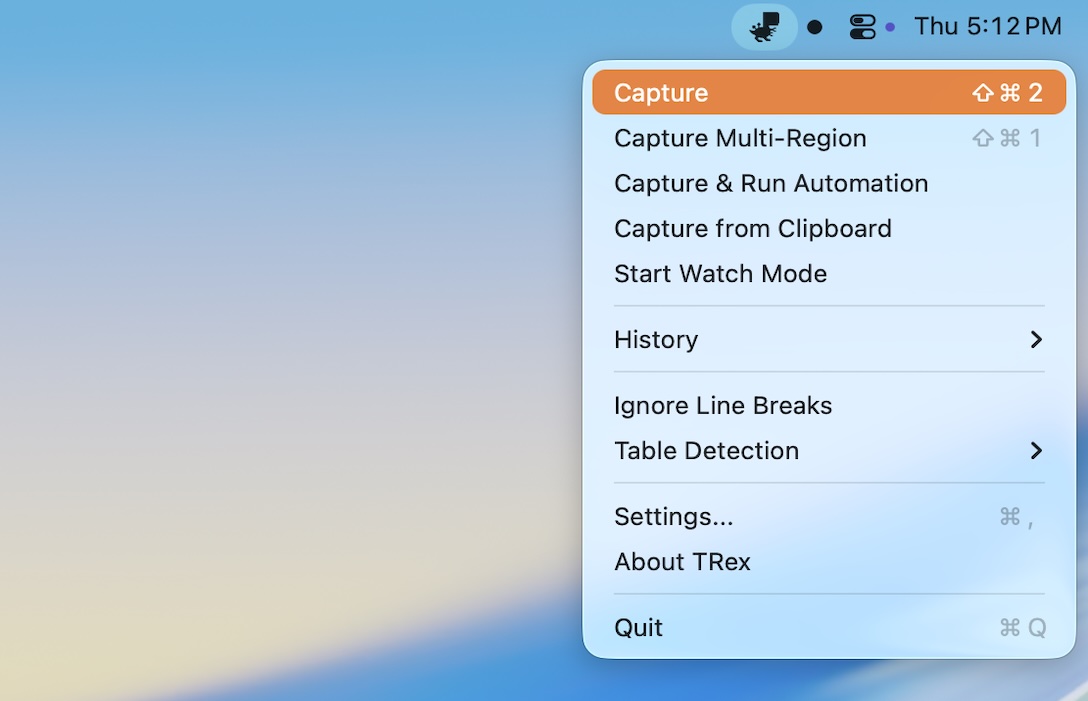
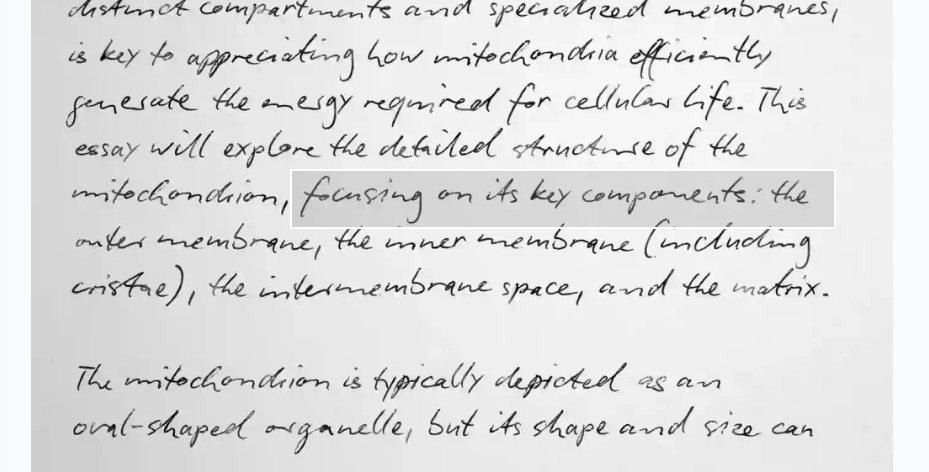
Step 2 Select Text Area
Your cursor will change to a crosshair. Click and drag to draw a selection box around the text you want to capture.
TRex will highlight the detected text in real-time, making it easy to see what will be captured.
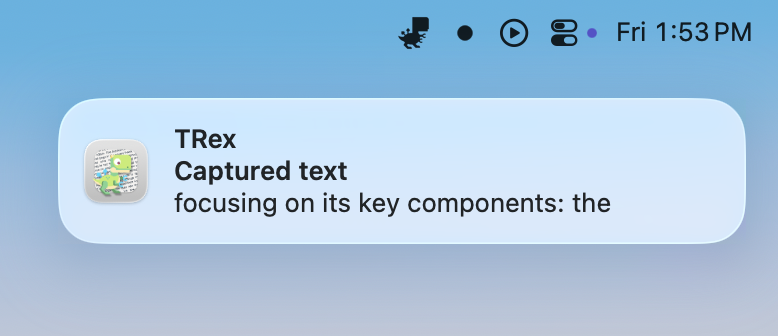
Step 3 Instant Copy
Release the mouse button and the text is instantly copied to your clipboard. You'll see a confirmation notification.
The captured text is now ready to paste anywhere - documents, emails, chat messages, or code editors.
Built for Power Users
CLI Tool
Integrate TRex into your scripts and automation workflows
Alfred Workflow
Quick OCR actions right from your Alfred launcher
Raycast Commands
Native Raycast extension for seamless integration
Automation Hooks
Build custom workflows with automation support
Frequently Asked Questions
What are the system requirements?
TRex requires macOS Big Sur (11.0) or later and runs on both Apple Silicon and Intel Macs. No internet connection is required for built-in OCR.
What's the difference between the free and paid versions?
Both versions have identical features. The Mac App Store version ($7.99, one-time purchase) helps support ongoing development and provides automatic updates. The GitHub version is completely free and open source.
Does TRex work offline?
Yes! Built-in OCR works 100% offline using Apple's Vision framework. Your data never leaves your device. LLM-powered OCR requires a network connection to reach your configured provider.
What languages does TRex support?
TRex supports over 100 languages with automatic language detection. Just capture any text and TRex will recognize the language for you.
How do I configure LLM providers?
Open TRex Preferences and go to the LLM tab. You can configure OpenAI, Anthropic, Apple Intelligence, or a custom endpoint like Ollama. Each feature (OCR, post-processing) can use a different provider.
Why doesn't TRex capture text from some applications?
Some apps use custom rendering that prevents screen capture. Ensure TRex has Screen Recording permission in System Settings → Privacy & Security → Screen Recording.
Can I use TRex with automation tools?
Yes! TRex includes a CLI tool, Alfred workflows, Raycast commands, and URL scheme support. You can trigger captures, watch mode, and history from scripts.
How do I report bugs or request features?
Visit the GitHub Issues page to report bugs or request features. We actively monitor and respond to community feedback.
Ready to Stop Retyping?
Join thousands of users who save time every day with TRex